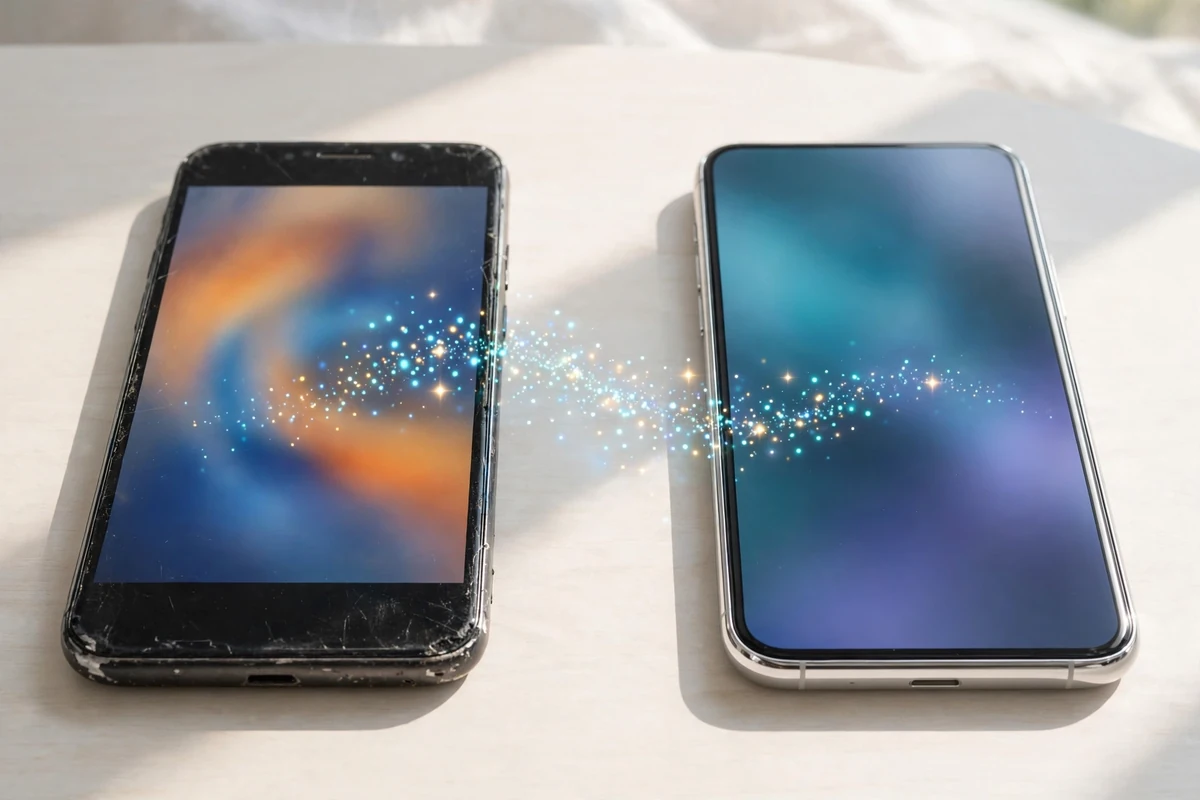
Getting a new phone is exciting right up until you stare at the empty home screen and wonder where everything went. The good news is that modern phones are built for this moment. Whether you are moving from iPhone to iPhone, Android to Android, or switching sides entirely, there is a guided tool that carries your photos, messages, apps, and settings across. This guide explains how to transfer data to a new phone in the right order, what to prepare first, and the small checks that stop anything from being left behind.
The golden rule is simple: prepare the old phone before you touch the new one. Thirty minutes of prep saves hours of hunting for passwords and missing photos later.
Before You Start: The Preparation Checklist
First, back up the old phone completely. A fresh backup is your safety net if the transfer stalls halfway, and it takes minutes to make; our guide on how to back up your iPhone covers iCloud and computer backups, and Android users can back up through their Google account settings. Do not skip this step because the transfer tool “usually works.” When it does not, the backup is the only copy.
Second, charge both phones or keep them plugged in. A large transfer can take an hour or more, and a phone dying mid-transfer is the classic way people corrupt the process. Third, connect both phones to the same strong Wi-Fi network. Fourth, update the old phone’s software, because transfer tools work best when both devices run recent versions; our walkthrough of how to update your iPhone shows the safe way to do it. Finally, gather your important passwords, especially for your Apple ID or Google account, email, and banking apps, since many will ask you to sign in again on the new device.
iPhone to iPhone: Quick Start Does the Heavy Lifting
Apple’s Quick Start is the easiest path. Turn on the new iPhone and place it beside the old one. A prompt appears on the old phone offering to set up the new one. Confirm, scan the animation with the old phone’s camera, and choose “Transfer from iPhone” to copy data directly, or restore from your iCloud backup if you prefer.
Direct transfer keeps the phones occupied, while an iCloud restore lets you start using the new phone sooner and downloads the rest in the background. Either way, keep the phones near each other and plugged in until the process finishes. Your home screen layout, settings, messages, and photos should all arrive. Some things never transfer for security reasons, including Face ID or Touch ID setup and Apple Pay cards, so expect to re-add those quickly at the end.
Moving Between Android Phones, or Switching Sides
Android-to-Android moves are just as guided. During setup, the new phone asks whether to copy apps and data from an old device. A cable connection is fastest and most reliable; a Wi-Fi transfer works too. Your Google account carries contacts, calendars, and photos, while the setup tool moves apps, messages, and settings. Samsung owners get an extra helper in Smart Switch, which also handles moves from an iPhone.
Switching from iPhone to Android uses the same copy-data flow, with your Google account doing much of the work. Going the other way, Apple’s free Move to iOS app transfers contacts, messages, photos, and mail accounts from an Android phone during iPhone setup. Whichever direction you go, new Android owners will find the first week easier with these Android tips and tricks for settings and shortcuts that are not obvious at first. Expect a few things to need manual help in any cross-platform move, especially chat histories, which usually transfer through each app’s own backup feature, and purchased apps, which must be bought again on the other platform.
Move Your Accounts, Passwords, and Two-Factor Codes
Data is only half the job. Your accounts are the other half, and two-factor authentication is where people most often get locked out. If your codes live in an authenticator app on the old phone, transfer or re-enroll that app before you wipe anything; our explainer on what two-factor authentication is covers how the codes work and why they do not simply follow you. A password manager makes the whole switch calmer, because every login is waiting for you on the new phone instead of being rescued from memory one app at a time.
Work through a simple order on the new phone: email first, since every other reset flows through it, then banking and payment apps, then social and shopping accounts. Keep the old phone nearby and powered on until every important account opens successfully on the new one. Only then should you think about erasing it. If the old phone is already gone rather than sitting beside you, the steps in our guide on how to find a lost phone explain how to secure your accounts and restore from backup instead.
Reconnect Accessories and Check the Details
Transfers rarely move Bluetooth pairings, so plan a few minutes to reconnect your gear. AirPods and other earbuds pair again from their case in seconds; the steps in our guide to how to connect AirPods cover both iPhone and Android. A smartwatch needs more care, because it must be unpaired from the old phone and paired to the new one to keep its health data flowing; the pairing advice in our smartwatch buying guide explains how the major watches handle the move.
Before you call the job done, spot-check the things people lose most: open your photo library and scroll to your oldest and newest pictures, check that message threads show recent conversations, confirm your contacts include recent additions, and look for your notes and voice memos. Photo libraries deserve special care because they are large and slow to sync; anyone who shoots seriously should also keep the habits in these travel photography tips for beginners, which include treating every transfer as a chance to confirm your library is backed up in two places. If a batch of photos genuinely failed to arrive, our guide on how to recover deleted photos lists the places they may still be hiding, including cloud albums and the old phone itself.
The Apps That Need Special Handling
Most apps move quietly, but a handful demand attention every time. Chat apps are the big one: WhatsApp and similar messengers keep their history in their own backup system, so open the app on the old phone, run its built-in chat backup, and only then start the phone transfer. Banking and investment apps almost always require a fresh login and identity check on the new device, and a few will lock themselves if they detect the old phone still signed in, so sign in on the new phone before signing out anywhere.
Games and subscriptions deserve a quick pass too. Make sure your game progress is tied to an account — an Apple ID, Google account, or the game’s own login — rather than stored only on the device, or a completed transfer can still leave your saves behind. Subscriptions bought through an app store stay with your account, not the phone, so they will reappear when you sign in; subscriptions bought directly from a service’s website need their own login check. Finally, if the transfer stalls or errors out halfway, do not factory reset anything. Restart both phones, confirm both are updated and charged, and run the transfer again; the tools are designed to resume cleanly, and your pre-transfer backup protects you in the rare case they do not.
Frequently Asked Questions
How long does a phone transfer take?
Anywhere from 15 minutes to over an hour, depending on how much data you have. A cable or direct phone-to-phone transfer is usually fastest; restoring a large library from the cloud takes longest.
Will my text messages move to the new phone?
Yes, in most cases. iPhone-to-iPhone and Android-to-Android transfers include messages, and cross-platform tools move them too, though some older message types and attachments can occasionally be left behind. Check before erasing the old phone.
When is it safe to erase or trade in the old phone?
After you have signed in to every important account on the new phone, confirmed your photos and messages arrived, and moved your two-factor codes. Then sign out of your Apple ID or Google account on the old phone and factory reset it.
What does not transfer automatically?
Face ID or Touch ID, payment cards, some banking app logins, and app passwords. Most take a minute each to set up again, and doing them in a planned order beats discovering them at a checkout line.
The Bottom Line
A phone switch goes smoothly when you respect the order: back up, update, transfer, verify, and only then erase. Use the built-in tool for your platform, give your accounts and two-factor codes their own careful pass, and keep the old phone untouched until the new one proves itself. Do that, and your new phone will feel familiar within the hour, with nothing important left behind.