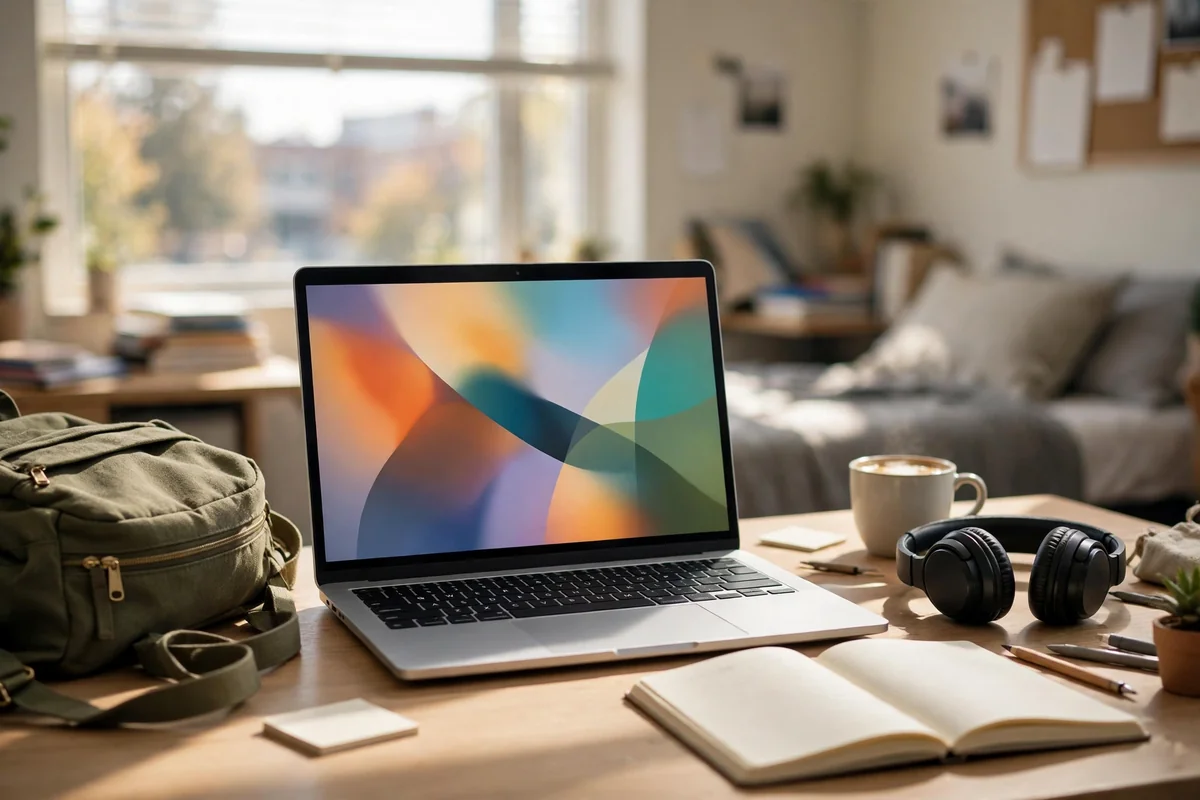
A college laptop has a harder job than most computers. It gets carried across campus all day, opened in lecture halls, coffee shops, and dorm rooms, and it is expected to last four years of notes, essays, video calls, and late-night deadlines. The best laptops for students are not the most powerful machines on the shelf. They are the ones that balance price, battery life, weight, and reliability so well that you stop thinking about them and just get your work done.
This guide sorts the choices by budget first, because money is the real constraint for most students, then explains the handful of specs that actually matter in plain English. By the end you will know exactly what to buy, what to skip, and where the smart savings hide.
Best Laptops for Students at Every Budget
Tight budget. If money is genuinely tight, a good Chromebook or an entry-level Windows laptop handles notes, documents, web research, and video calls without complaint. These machines shine for writing-heavy majors and general coursework. The catch is software: confirm your courses do not require specific Windows or Mac programs before choosing a Chromebook, because a few engineering, design, and statistics tools still do.
The mid-range sweet spot. For most students, this is where the value lives. A mid-range Windows ultrabook or a MacBook Air-class machine brings a metal body, a bright screen, a backlit keyboard, and enough speed to feel effortless for four years. If you can stretch to one upgrade, spend it here rather than on a budget model, because this tier is the one students rarely regret.
Premium and power users. Design, architecture, film, computer science, and engineering students may genuinely need a stronger processor, a better graphics chip, and more memory for demanding software. Everyone else should be honest: premium thin-and-light models are lovely, but the extra money often buys looks rather than grades. Spend the difference on a good backpack, a second charger, and your textbook fund.
The Specs That Actually Matter, in Plain English
Spec sheets are written to confuse, so here is the short version. Aim for 16GB of memory (RAM) if your budget allows, because it decides how many tabs, documents, and apps can run at once without stuttering; 8GB still works for light use but feels its age sooner. Storage of 256GB is the workable minimum, and 512GB is comfortable if you keep photos and video. The processor matters less than the marketing suggests: any current mid-range chip from Intel, AMD, or Apple handles student work easily.
The screen deserves more attention than it gets. You will stare at it for thousands of hours, so prioritize a sharp, bright display with comfortable size, usually 13 to 14 inches for portability. Weight matters for the same reason: a laptop under about 3.5 pounds disappears into a backpack, while a heavy gaming machine becomes a daily complaint. If the spec sheet still feels like a foreign language, our full guide on how to choose a laptop translates every term and shows how to compare models side by side.
Battery Life, Weight, and Surviving Four Years
Lecture halls never have enough outlets, so real-world battery life is a top-three feature for students. Look for machines rated for long days and read reviews that test actual mixed use, not just video playback. Whatever you buy, the habits in our guide on how to extend laptop battery life will stretch every charge further and slow the battery’s aging over four years of daily cycles.
Durability is quieter but just as important. A metal or well-built chassis, a hinge that feels solid, and a keyboard that tolerates fast typing all predict a laptop that survives dorm life. Consider a padded sleeve non-negotiable, and check the warranty terms before you buy. Many manufacturers offer student discounts through their education stores, especially during the back-to-school season, so never pay full price without checking.
Match the Laptop to Your Major
Writing-heavy majors like English, history, law, and business live in documents and browsers, so almost any machine in this guide works; put your money toward the keyboard and screen you will enjoy daily. Business and economics students should confirm the laptop runs the full desktop version of Excel comfortably, and our Excel tips for beginners will make those spreadsheet assignments far less painful once classes start.
STEM and design students should check their department’s published requirements, because some programs specify a Windows machine, a discrete graphics chip, or minimum memory for CAD, coding environments, or video editing. Art and media students benefit from a color-accurate screen and extra storage. When in doubt, buy for the most demanding course you will actually take, not the most demanding one you can imagine.
Build a Study Setup Around the Laptop
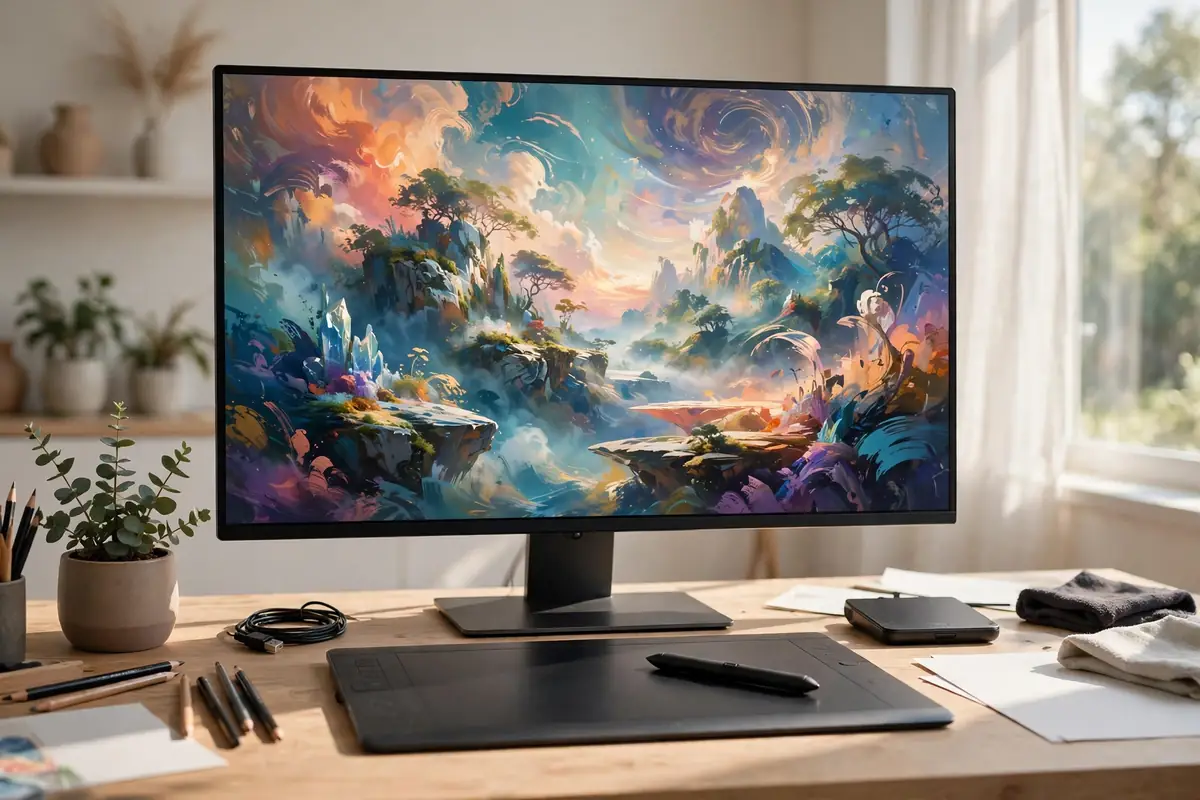
A laptop works better with a small supporting cast. At a dorm desk, a second screen transforms research and writing; our dual monitor setup guide shows how students connect one cheaply and arrange it well, and the desk, lighting, and chair ideas in our home office setup ideas collection scale down perfectly to a dorm corner. Software matters too: the apps in our roundup of the best note-taking apps sync your lecture notes between laptop and phone, so a dead battery never means lost notes.
Your software habits complete the setup. Students record more lectures than ever, and knowing how to screen record on your laptop turns a live online class into notes you can revisit before exams. If gaming is your main stress relief, be honest about priorities: one strong route is a modest laptop for class paired later with a dedicated machine, and students curious about that path can see what is involved in our guide to how to build a gaming PC before deciding whether a heavy gaming laptop is worth carrying for four years.
Money choices surround the purchase as well. Families paying from a college savings account can see how that fits the bigger picture in our explainer on the 529 college savings plan, and every student benefits from putting the purchase into a real plan with our guide on how to make a monthly budget, because the laptop is only the first of the semester’s expenses. One more radical idea: if your current laptop is merely slow rather than broken, try the fixes in our guide on how to speed up a computer first. Another semester from the old machine can move your purchase to a sale season and save real money.
Chromebook, Mac, or Windows: A Quick Decision Guide
If the budget tiers left you torn between platforms, decide with three questions. First, does your program require specific software? That answer alone can end the debate, because required Windows-only lab tools rule out Chromebooks and complicate Macs, while a required creative suite may point the other way. Second, what do you already own? Students with an iPhone often love how a Mac answers texts and shares files, while students invested in Google services may find a Chromebook or Windows machine feels like home.
Third, how do you actually work? If your life is browser tabs, documents, and video calls, every platform here succeeds, so buy the best screen and keyboard in your budget. If you game, edit video, or run engineering tools, Windows offers the widest hardware range at every price. There is no trophy for the “right” answer, only the machine whose trade-offs you will happily live with for four years of deadlines.
Frequently Asked Questions
Mac or Windows: which is better for college?
Both are excellent. Choose based on your major’s software requirements and what you already know. Some engineering and business programs lean Windows; media programs often lean Mac. Your school’s IT page usually states a preference.
How much storage does a student really need?
256GB is the honest minimum if you use cloud storage for photos and files. Choose 512GB if you keep large media, games, or design projects on the machine itself, because storage cannot be upgraded later on most thin laptops.
Is a touchscreen or 2-in-1 worth it?
Only if you will genuinely handwrite notes or draw. Students who take notes with a stylus love them; everyone else pays extra for a hinge they rarely use. A great keyboard beats a gimmick for essay-heavy courses.
When is the best time to buy?
Back-to-school sales in summer and the late-November sales season bring the deepest education discounts. If your old machine still works, waiting for one of those windows can save a meaningful amount.
The Bottom Line
The best laptops for students are boring in the right ways: light enough to carry all day, charged enough to skip the outlet hunt, and sturdy enough to graduate with you. Remember, too, that the student discount you never check is quietly the most expensive feature of all. Pick your budget tier honestly, aim for 16GB of memory and a good screen, match the machine to your major, and spend what is left on the setup and supplies around it. That combination will serve you far better than the flashiest box on the shelf.