Slow Wi-Fi is frustrating because everything depends on it: work calls, streaming, homework, and smart home gadgets. The good news is that most home network problems come from a handful of common causes, and you can work through them in about half an hour. This guide explains how to fix slow wifi step by step, starting with the checks that solve the problem most often.
Step 1: Confirm the Problem Is Really Wi-Fi
Before changing any settings, find out whether the slowdown is your wireless signal or your internet connection itself. Stand next to your router and run a speed test on your phone or laptop. Then run the same test in the room where the connection feels slow. If speeds drop sharply with distance, it is a coverage problem. If speeds are slow even beside the router, plug a computer directly into the router with an Ethernet cable and test again. A slow wired result points to your internet provider or your plan, not your Wi-Fi.
Step 2: Restart Your Modem and Router the Right Way
Restarting clears memory, stuck connections, and minor software faults that build up over weeks of continuous use. Unplug both the modem and the router from power. Wait a full thirty seconds, then plug the modem back in and give it a few minutes to reconnect completely. Only then plug the router back in. Restarting in this order matters, because the router needs the modem to be fully online before it starts handing out connections.
Step 3: Move Your Router to a Better Spot
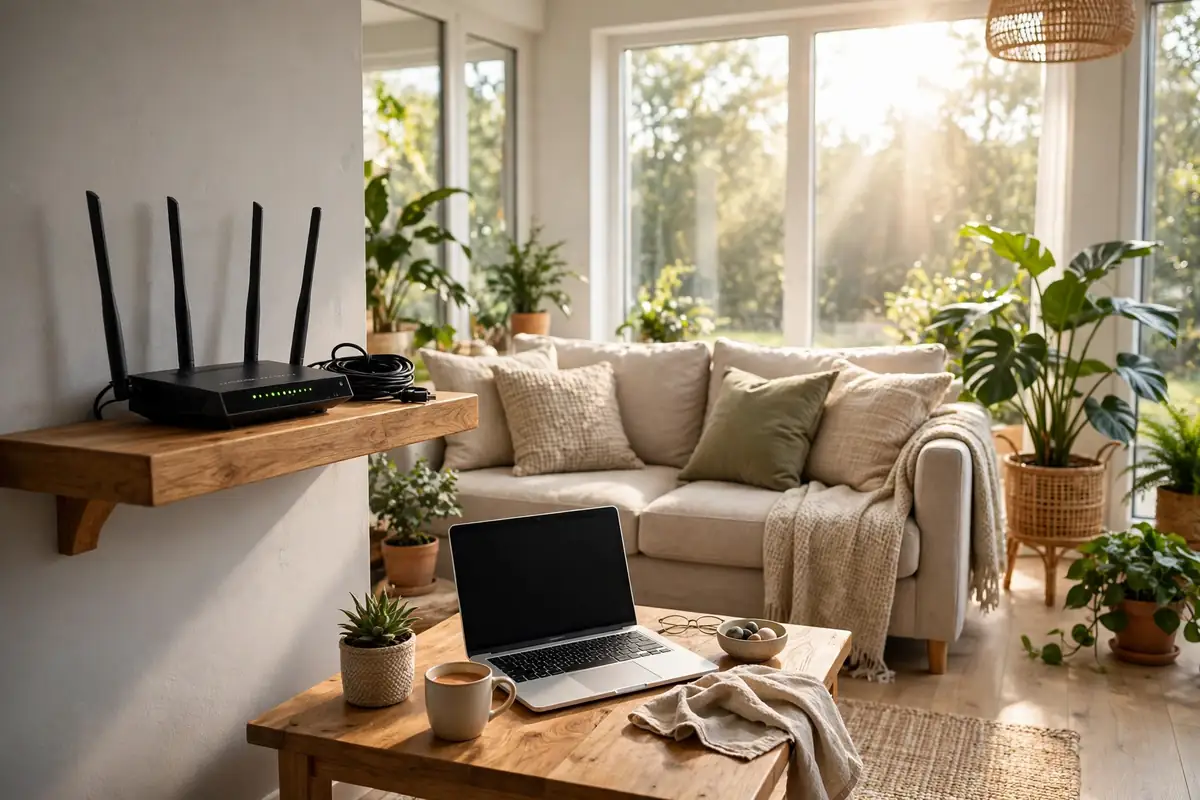
Router placement is the most underrated fix in this entire guide. Wi-Fi signals weaken through walls, floors, and metal objects, and they spread outward and slightly downward from the router. Place the router:
- Near the center of your home, not in a corner or basement.
- Up on a shelf rather than on the floor.
- Away from thick walls, fish tanks, and large metal appliances.
- Out in the open, not inside a closed cabinet or entertainment center.
Even moving a router a few feet can noticeably improve speed in a far bedroom. If one room is still a dead zone after repositioning, that is a sign your home may need a different kind of network, which we cover in our guide to setting up a mesh Wi-Fi system for larger houses.
Step 4: Use the Right Wi-Fi Band
Most routers broadcast two or three bands. The 2.4 GHz band travels farther and passes through walls better, but it is slower and more crowded. The 5 GHz band is much faster at shorter range, and newer routers add a 6 GHz band for the fastest connections nearby. For video calls and streaming, connect devices close to the router to the 5 GHz network. Leave distant devices and smart home gadgets on 2.4 GHz, where range matters more than raw speed.
Confused about how home Wi-Fi compares with mobile data? Our explainer on 5G vs Wi-Fi breaks down the differences and when each one is actually faster.
Step 5: Reduce Interference From Neighbors and Gadgets
In apartments and dense neighborhoods, dozens of networks compete for the same airspace, especially on the 2.4 GHz band. Many routers pick a channel automatically, but they do not always pick well. Log in to your router’s settings or app and set the 2.4 GHz channel to 1, 6, or 11, whichever is least crowded. Microwave ovens, older cordless phones, and Bluetooth devices can also interfere with 2.4 GHz signals, which is one reason connecting AirPods and other Bluetooth devices sometimes stutters when the microwave runs.
Step 6: Check How Many Devices Are Competing
The modern home asks a lot of one connection. Phones, tablets, TVs, game consoles, cameras, and smart speakers all share the same bandwidth. A single device backing up photos or downloading a huge game update can make everyone else feel a slowdown. Look at your router’s app for a list of connected devices, pause or schedule big downloads for overnight, and disconnect gadgets you no longer use.
Keep in mind that always-on devices add up quietly. Following a smart home beginner’s guide can help you organize them sensibly, and if you are adding cameras, this home security camera guide explains how to plan for the bandwidth they use around the clock.
Step 7: Secure Your Network and Update Firmware
An unsecured or weakly secured network may be serving your neighbors as well as your family. Make sure your Wi-Fi uses WPA2 or WPA3 security with a strong password you have not shared widely, and change it if half the street knows it. While you are in the settings, check for a router firmware update. Manufacturers regularly release updates that improve stability, fix bugs, and patch security holes, and many routers can install them automatically overnight.
Once you’ve ensured that your Wi-Fi issues are resolved, you can fully appreciate the seamless connectivity that facilitates a myriad of modern tasks, from remote work to entertainment. In today’s digital landscape, strong internet performance is crucial not only for basic browsing but also for engaging with more advanced technologies, such as artificial intelligence. For instance, as you explore the possibilities of creativity through AI, understanding how to leverage the right tools can elevate your projects significantly. Embracing the capabilities of AI art tools opens a new realm of creative expression, allowing you to how to create ai images that reflect your vision with precision and flair. This intersection of technology and creativity illustrates the importance of a robust network, empowering users to harness innovative solutions in their everyday lives.
Step 8: Test Your Speed Against Your Plan
Now run another speed test near the router and compare it with the speed your internet plan promises. Wired speeds should land reasonably close to your plan’s advertised rate, and Wi-Fi speeds nearby should be in the same neighborhood. Remember that plans advertise “up to” speeds, and evening hours are busier for everyone. If wired speeds are consistently far below what you pay for, the problem sits with your provider or your modem, and it is time to call them with your test results in hand.
One more setting worth checking: a VPN reroutes all your traffic through another server, which adds distance and can cut speeds noticeably. If you use one, test with it off to see the difference. Our plain-English explainer on what a VPN is and whether you need one covers the trade-offs.
When Only One Device Is Slow
Sometimes the network is fine and a single device is the problem. If every phone and laptop in the house runs well except one, focus on that device instead of the router. Start by turning its Wi-Fi off and back on, which forces a fresh connection. If that does not help, tell the device to forget your network and join again from scratch, because saved settings can become corrupted over time.
Next, check the device itself for pending software updates, and look at where it connects: an older laptop may only support the slower 2.4 GHz band, which makes it look like the network’s fault when the limit is actually the hardware. Thick phone cases and metal laptop stands can also weaken a device’s own antenna more than people expect. Finally, compare that device’s speed test result right next to the router. If it is still far slower than other devices in the same spot, the device’s Wi-Fi hardware may be failing, and a repair or a simple USB Wi-Fi adapter is the practical answer.
Everyday Habits That Keep Wi-Fi Fast
Once things are running well, a few habits keep them that way. Restart the router once a month or so, or set it to reboot on a schedule if yours supports that. Keep firmware updated. When you add a bandwidth-hungry hobby, plan for it: cord-cutters who rely on streaming for everything should read our guide to cutting the cord so the network is ready before the cable box goes back. Comparing the major streaming services also helps you see how many simultaneous streams your plan needs to handle.
Small wired fixes help too. If your printer keeps dropping off the network, our fixes for a Wi-Fi printer showing as offline solve the most common causes, and moving stationary devices like a desktop or TV box to Ethernet frees wireless capacity for everything else. For work-from-home days, the gear in our roundup of the best webcams and microphones will not fix a bad connection, but it makes a good one go further.
When to Upgrade Your Router
Sometimes the honest fix is new hardware. Consider upgrading if your router is more than about five years old, if it only supports the older Wi-Fi 5 standard while your devices support Wi-Fi 6 or newer, or if your home has simply outgrown a single-router setup. Learning how to fix slow wifi sometimes ends here, and that is fine: a modern router or mesh system matched to your home’s size will outperform endless tweaking of equipment that was never built for today’s device counts.
Frequently Asked Questions
Why is my Wi-Fi fast in one room and slow in another?
Distance and obstacles. Walls, floors, and appliances weaken the signal as it travels, so rooms far from the router get slower speeds. Better router placement or a mesh system usually solves it.
Will a Wi-Fi extender fix my problem?
An extender can help one dead spot, but it often cuts speed because it repeats the signal on the same airwaves. For whole-home problems, a mesh system is usually the better long-term fix.
How often should I restart my router?
Once a month is a good habit, and whenever speeds suddenly drop for no clear reason. A proper restart, modem first, takes only a few minutes.
Work through these steps in order and most households will find their culprit: placement, band choice, interference, or an overloaded network. Fix one thing at a time, test after each change, and your Wi-Fi should feel fast again on every device in the house.